
Taking Exams, Camera Scanning & Replacing Answer Sheets
Step-by-step instructions for clicking clean photos of handwritten pages, rearranging pages, and uploading your answer sheet.
1Locate the Active Exam Card
Sign into PaperGrade on your phone. Under 'Active Examinations', you will see your scheduled exam marked with a pulsing green badge: 'ACTIVE NOW'. A real-time countdown timer shows exactly how many minutes remain before the submission window closes.
2Click Photos with the In-App Camera
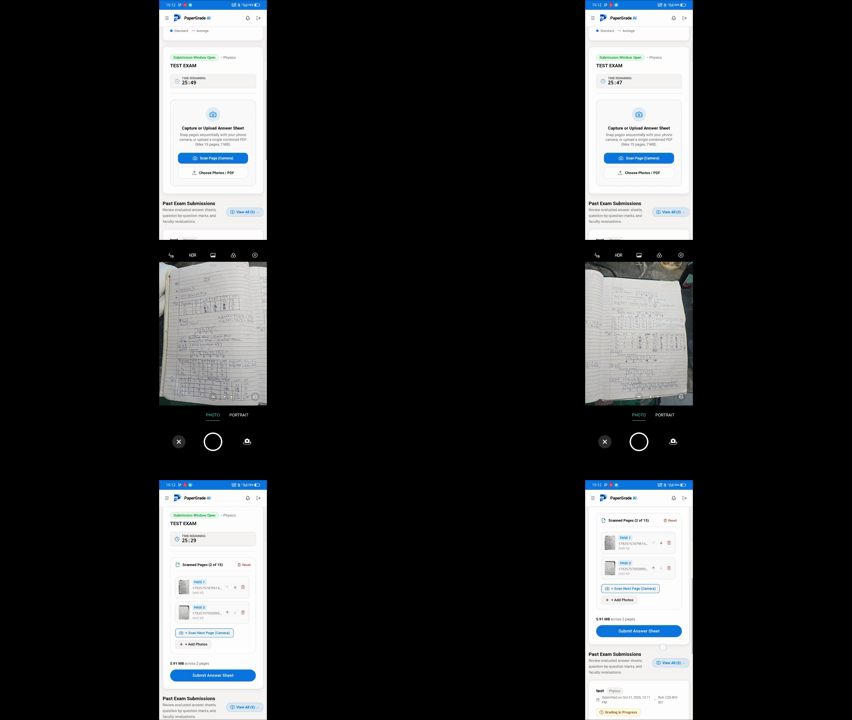
Tap [ Scan Page (Camera) ]. Your phone camera opens inside PaperGrade. Hold your phone flat over page 1 in good room light, make sure all four corners are visible, and tap the shutter button. The page appears as thumbnail #1. Repeat for page 2, page 3, up to page 15.
3Choose Photos or PDF from Gallery
If you already took photos using your standard camera app or have a scanned PDF document, tap [ Choose Photos / PDF ] to select the images directly from your photo library.
4Rearrange & Delete Pages (Drag and Drop)
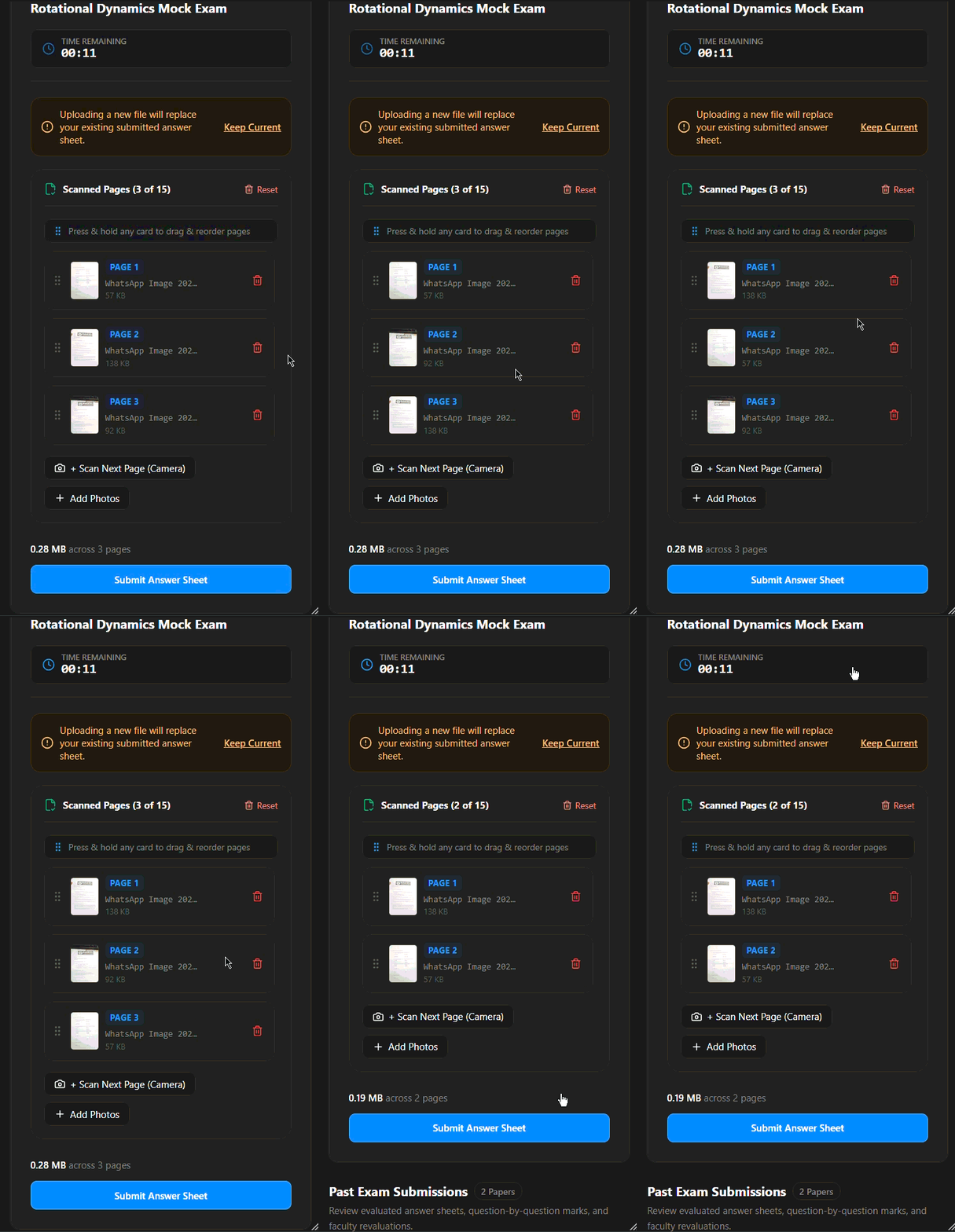
Review the thumbnail strip below the camera button. Each page shows its order number (Page 1, Page 2...). On mobile devices, simply press and hold any card to drag and drop it into the correct sequence with fluid swapping animation. On desktop, you can also use the [ ↑ ] and [ ↓ ] arrows. Tap the [ Trash ] icon to remove any blurred page and retake it.
5Submit Your Answer Sheet
When all pages are in order, tap [ Submit Answer Sheet (N Pages) ]. The app automatically combines your photos into one clear document on your phone and uploads it securely to the cloud. You will see a green checkmark saying 'Submission Received Successfully' with your official timestamp.
6Replacing Your Answer Sheet Before the Deadline
If you realize you missed a page or submitted the wrong sheet, do not worry: as long as the exam window countdown timer is still running, you can tap [ Replace Answer Sheet ]. This opens the scanner again. Scan your corrected pages and tap [ Confirm Replacement ]. The newest submission replaces the previous one with an updated audit timestamp.
Frequently Asked Questions
Why does the app say 'Results will be published tomorrow' instead of showing instant marks?
PaperGrade follows an overnight batch evaluation policy. During the daytime exam hours, server capacity is 100% reserved so that uploading answer sheets is smooth and lag-free for every student. AI evaluation runs overnight after classes finish.
What happens if my phone battery dies or internet drops while uploading?
If the network disconnects, the app safely alerts you. Simply reconnect to Wi-Fi or mobile data and tap Submit again before the window timer reaches zero.