Batches, Student Rosters, CSV Bulk Imports & Reset Approvals
Managing classroom batches, adding students individually or via spreadsheet, and approving student password resets.
1Faculty & Staff Sign-In
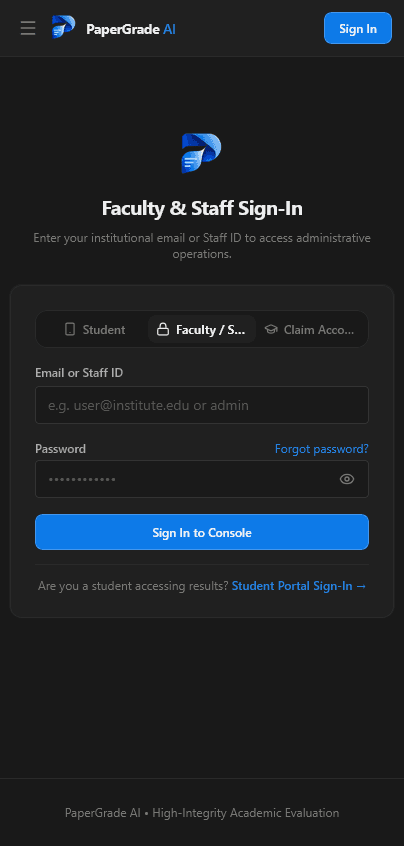
Navigate to the portal and select the [ Faculty / Staff ] tab. Enter your registered institutional email or Staff ID and your password to enter the administrative operations console.
2Create Academic Batches & Review Roster
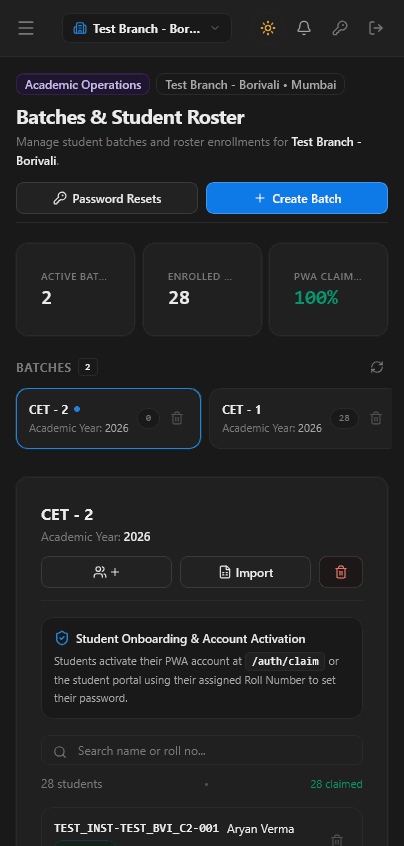
Go to /branch/batches. In the top toolbar, view active batches, enrolled student counts, and PWA claim percentages. Click [ + Create Batch ] to add new classrooms.
3Bulk Import Rosters from Excel or CSV
To onboard a full class at once, click [ Import Roster (CSV) ]. Prepare a spreadsheet with columns: roll_number, full_name, and email. Drag and drop the file. The dialog validates each row and alerts you to any duplicates. Click [ Confirm Import ].
4Authorize Student Password Resets
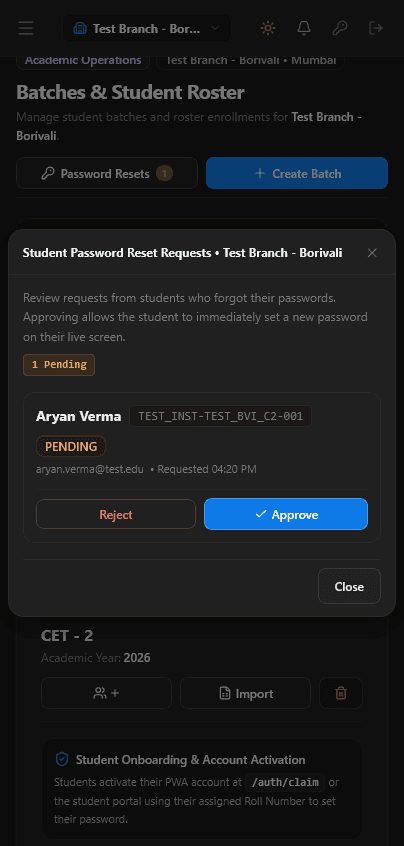
When a student requests a password reset from the login screen, a yellow alert appears on your batches page: 'Student Password Reset Request Pending Approval'. Click the card to open the authorization desk, verify the student's roll number, and click [ Approve Reset ]. Their phone unlocks immediately in real time.
5One-Time Initial Password Setup for Staff
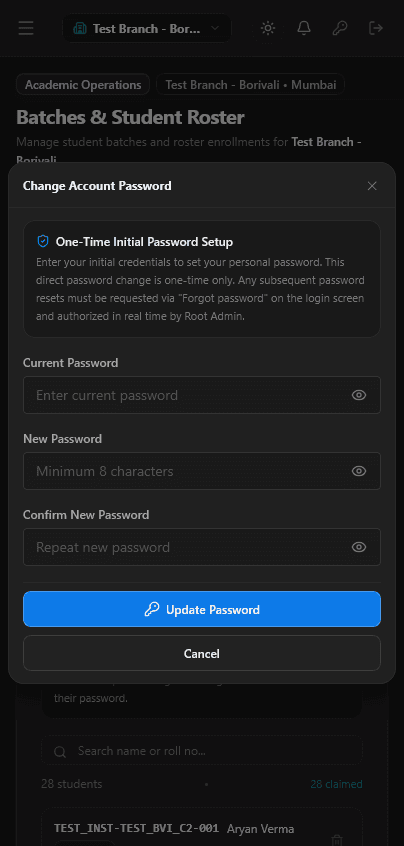
When a new staff account is provisioned by the Director, enter your initial credentials to set your personal permanent password. Subsequent password resets must be authorized by Root Admin.