
Student Password Recovery (Forgot Password Workflow)
How to reset your student password securely through live Branch Manager approval without losing account data.
1Start Password Reset
On the sign-in screen, make sure the [ Student ] tab is selected. Under the password field, tap 'Forgot password?'.
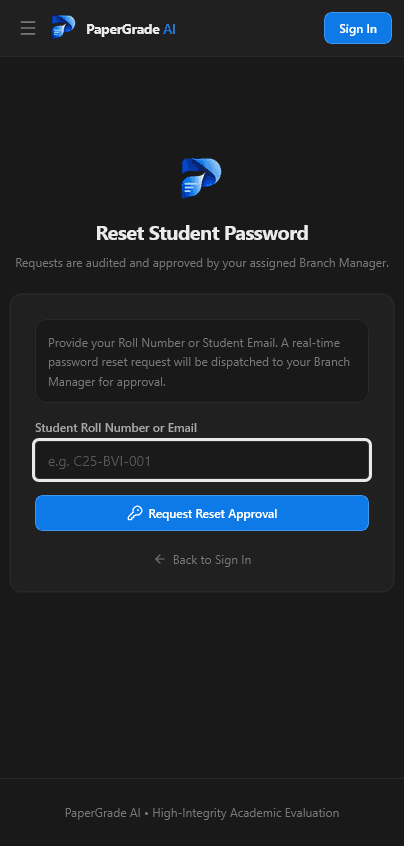
2Enter Your Student Roll Number
In the < Student Roll Number or Email > box, enter your official roll number (e.g. TEST_INST-TEST_BVI-001). Tap [ Request Reset Approval ].
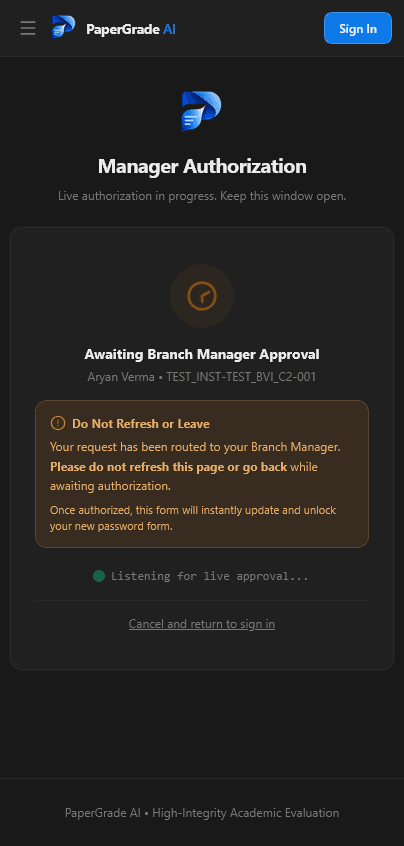
3Keep the Waiting Screen Open
Your screen will transition to: 'Awaiting Branch Manager Approval' with an active radar animation. A real-time request is sent to your Branch Manager's computer.
4Instant Unlock & Setting New Password
As soon as your Branch Manager clicks approve, your screen automatically changes to 'Set New Password' without needing any page reload. Enter your new password, confirm it, and tap [ Save New Password & Sign In ]. You are signed in immediately.