Filing Revaluation Appeals & Reporting Technical Glitches
How to challenge a question mark with academic justification, and how to report app bugs or upload issues with screenshots.
1How to File a Revaluation Appeal
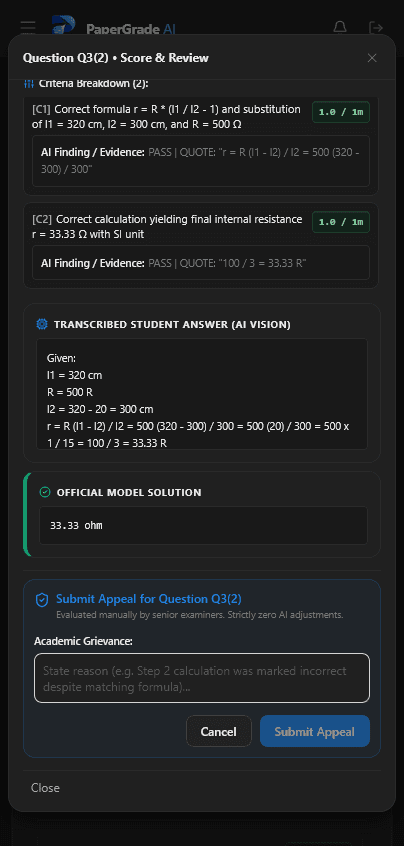
Open your graded paper or tap [ Request Revaluation ] on your past exam card. Tap on the question you wish to challenge. At the bottom of the question review dialog, tap [ Submit Appeal for Question ].
2Write Your Academic Justification
In the justification box, write a clear, academic reason (e.g., 'Formula in Step 2 matches Maharashtra State Board Textbook Page 54. Requesting review of partial mark'). Tap [ Submit Appeal ].
3Tracking Your Appeal
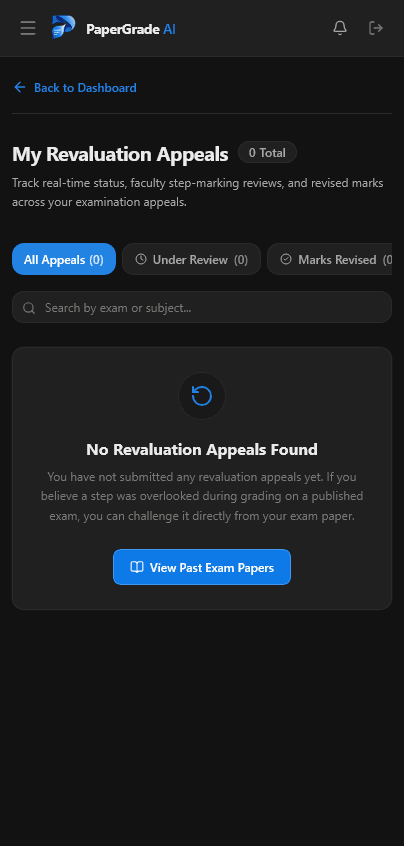
Go to 'Revaluations & Appeals' in your navigation menu. You can track real-time status across all your examination appeals: '● Revaluation Pending' (orange) or '● Marks Revised' (gold). When revised, your paper is automatically re-stamped with the new score.
4How to Report a Technical Bug or App Glitch
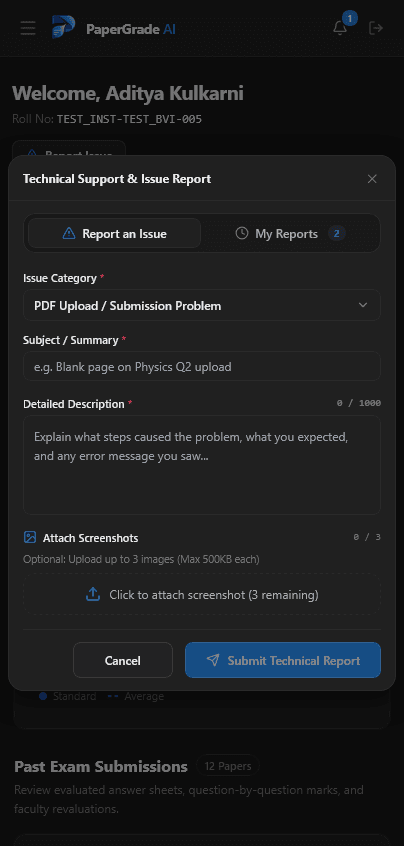
If you experience an upload error, layout glitch, or screen freeze, tap [ Report Issue ] at the top of your student dashboard or inside the Student Support card.
5Choose Category & Attach Screenshots
Select the issue category: 'PDF Upload / Submission Problem', 'Marks & Evaluation Display Issue', 'Login & Authentication Problem', or 'Page Visual Glitch'. Describe what happened and tap [ Click to attach screenshot ] to attach up to 3 photos of the error. Tap [ Submit Report ].
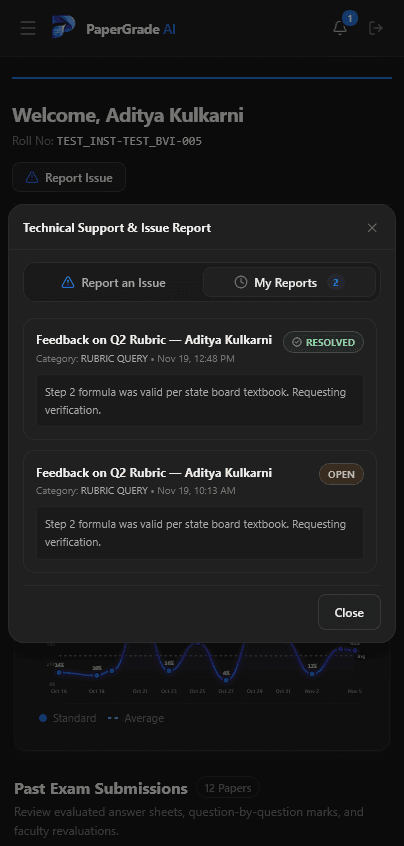
6Check Status in 'My Reports'
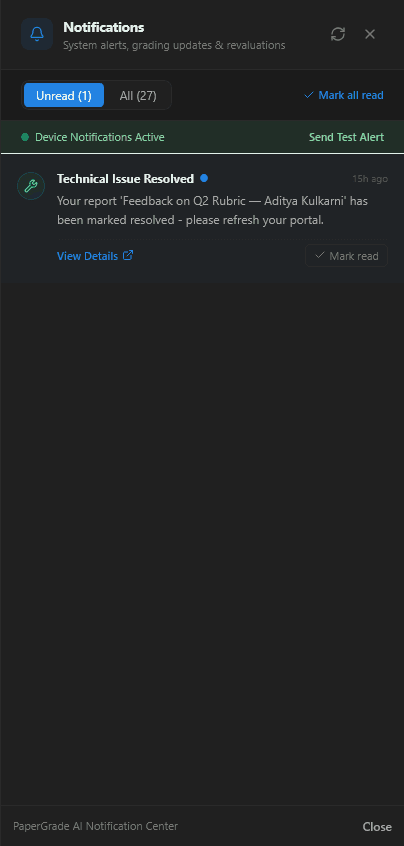
Switch to the [ My Reports ] tab anytime to see your ticket status (Pending, Investigating, Resolved) and read comments from technical staff.
7Real-Time Resolution Alerts
When an engineer or manager resolves your technical ticket, an in-app alert notifies you immediately with a direct link to view details.