
Installing the App on Your Phone & First-Time Account Setup
How to add PaperGrade to your home screen for full-screen camera use and activate your account using your Roll Number.
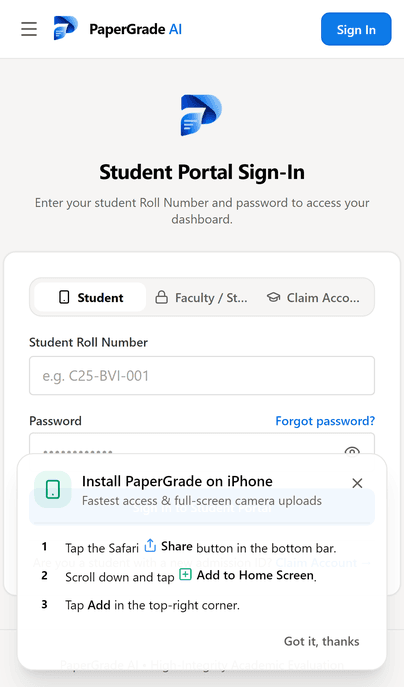
1Install on iPhone or iPad (Safari)
Open the exam portal link in Safari. Tap the Share icon (the square with an arrow pointing upward at the bottom of the screen). Scroll down the share sheet and tap 'Add to Home Screen'. Tap 'Add' in the top right corner. The PaperGrade icon will now appear on your home screen.
2Install on Android (Chrome)
Open the portal link in Google Chrome. Tap the 'Install App' banner that appears at the top or bottom of the screen. If you do not see the banner, tap the three dots in the top-right corner and select 'Install app' (or 'Add to Home screen'). Confirm by tapping 'Install'.
3Open the App & Choose 'Claim Account'
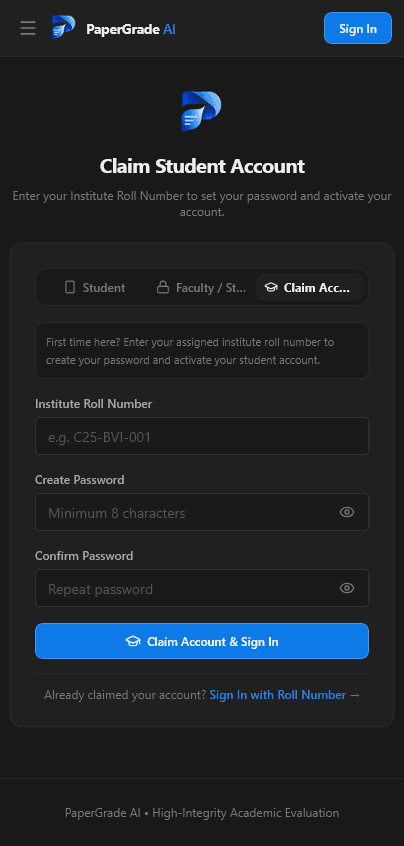
Launch PaperGrade from your home screen. At the top of the sign-in box, you will see three tabs: [ Student ], [ Faculty / Staff ], and [ Claim Account ]. Tap [ Claim Account ].
4Enter Your Roll Number & Set Password
Type your official Roll Number provided by your institute (for example: C25-BVI-001) in the < Institute Roll Number > box. Enter a secure password (at least 8 characters) in < Create Password >, and repeat it in < Confirm Password >.
5Activate & Sign In
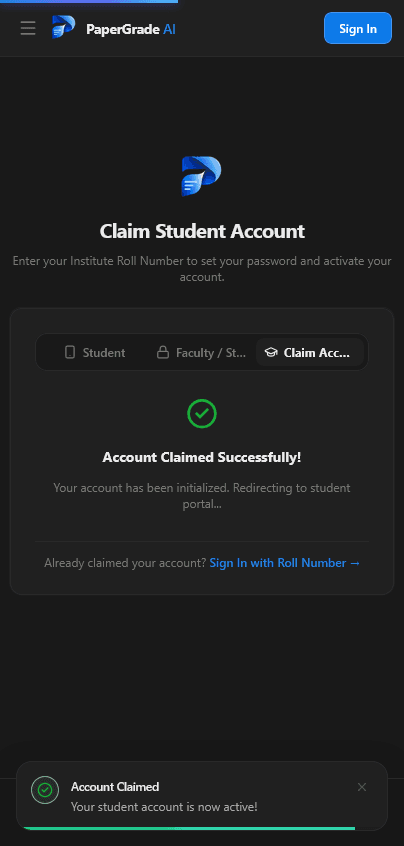
Tap [ Claim Account & Sign In ]. You will see a green confirmation saying 'Account Claimed Successfully!' and be automatically logged into your Student Portal dashboard. For future logins, use the regular Student Sign-In tab with your roll number and password.
Frequently Asked Questions
What if the app says 'Roll number not found or already claimed'?
Check that you typed your roll number with correct dashes and capital letters. If your account was already activated earlier, simply switch to the [ Student ] tab and sign in. If you forgot your password, use the 'Forgot password?' link.