
Publishing Results, Class Spreadsheet & CSV Exports
Publishing marks to students, inspecting the question-by-question marks matrix, and exporting official grade sheets.
1Clear All 'Needs Review' Flags First
The system enforces a strict quality guardrail: you CANNOT publish results if any papers remain in 'Needs Review' status. All flagged papers must be checked and cleared by a teacher first.
2Publish Results
Once all papers are evaluated and cleared, click [ Publish Results ] in the top action bar. The status changes to '● PUBLISHED'. Students can now see their scores and graded papers.
3Inspect the Class Marks Matrix (/marks)
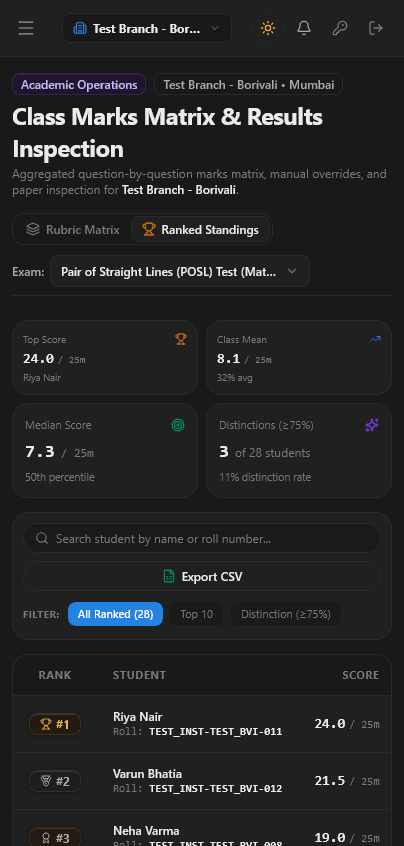
Go to 'Marks & Inspection' in the sidebar and choose your exam. Switch between [ Rubric Matrix ] (a full spreadsheet showing every student across rows and each question across columns with class averages) and [ Ranked Standings ] (merit leaderboard).
4Export CSV Reports
Click [ Export CSV ] to download the official grade sheet with roll numbers, total marks, and sorted merit rankings for school records.