Managing Staff Accounts & Approving Staff Password Resets
Provisioning branch managers, managing access permissions, and authorizing faculty password resets.
1Appoint a Branch Manager
Go to /admin/tenancy. Locate the target branch card and click [ Provision Manager ]. Enter their Full Name, Official Email, and initial password. Click Save.
2Update or Revoke Staff Access
Use [ Edit Manager ] to update contact details or [ Delete Manager ] to revoke branch management credentials.
3Authorize Staff Password Resets
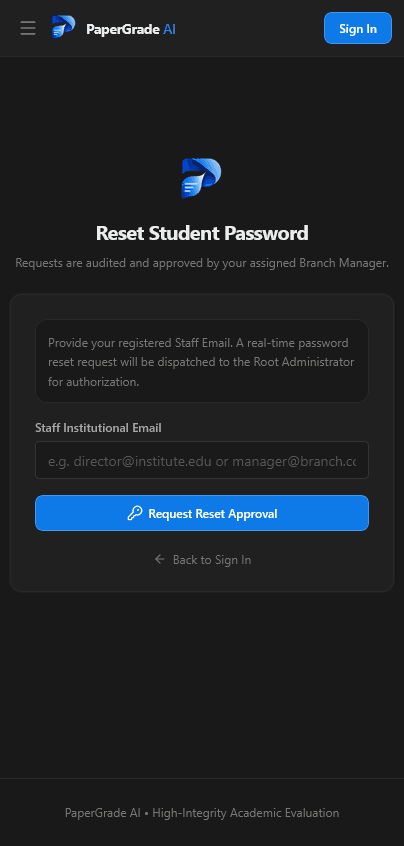
If a Branch Manager or faculty member forgets their password, they submit a reset request on the staff login screen using their institutional email. The request routes directly to the Root Administrator for authorization.
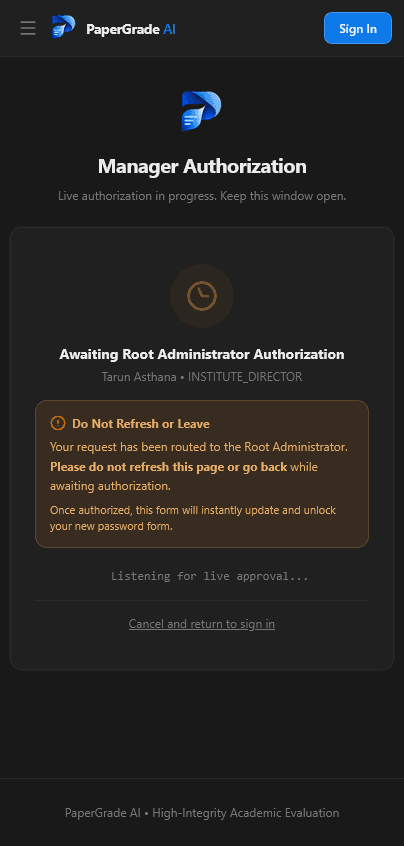
4Root Administrator Live Waiting & Unlock
While awaiting Director authorization, the staff member's screen displays the live authorization radar. Once approved in /admin/tenancy, their screen instantly unlocks to create a new password.